
*Activating new templates requires updating your data integration. Please contact support@listen360.com for help before customizing any surveys.
Survey templates
A template is a set of questions and details that will be used repeatedly to survey your customers or prospects. Navigate to Account > Templates to configure a template.
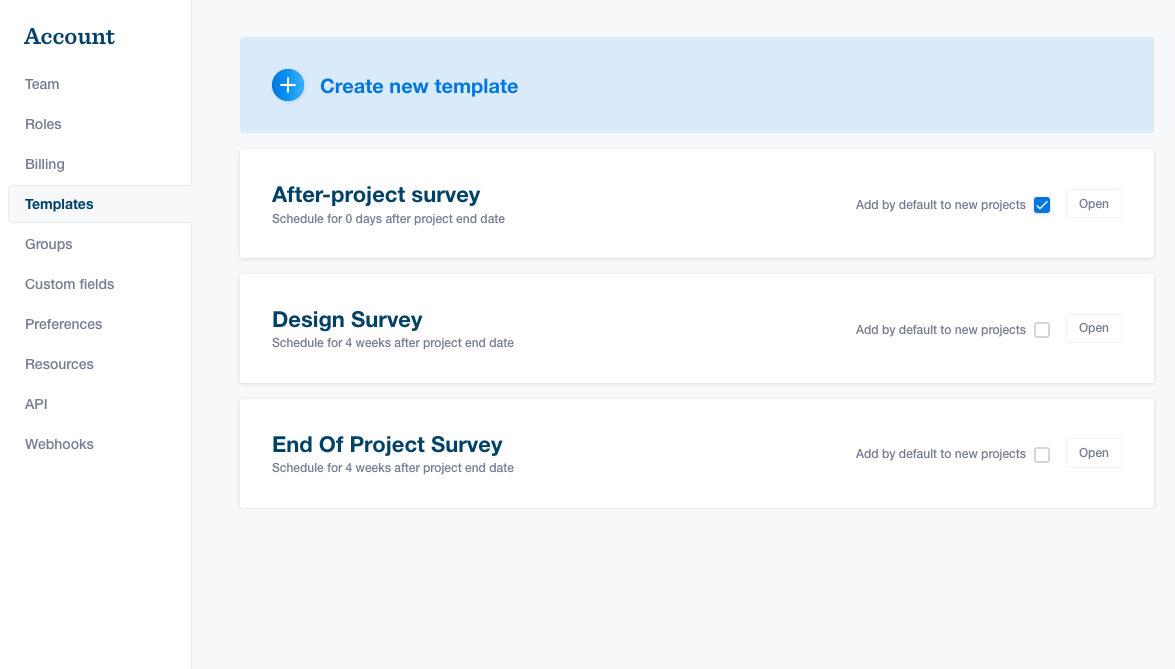
Choose your template settings
- Click Create New Template and enter the name of your template
- Select the Survey stage
- Ended – You can schedule these surveys any time after the project/job end date. This is most often used for project/job completion surveys and warranty surveys.
- Started – You can schedule these surveys any time after the project/job start date. We usually consider a project/job to start after a contract has been signed.
- Lead – Anyone who is considering your business but isn’t a paying customer is a lead. Lead surveys will have separate reports and will not show up on your public profile page.
- Ongoing - A survey that will be sent out multiple times on a set schedule you decide. Usually best for customers with an ongoing subscription or recurring work.
- Select a Survey process
- Full Process – Uses phone, email, and text message to deliver surveys. This process gets the highest response rate.
- Email Only – Limited to email as a delivery method. You may see a lower response rate (by 10-15%) compared to the full process.
- Expedited Process – Fewer touch points over fewer days. Limited to email and text message delivery methods and can be fully customized.
- Phone only – Your customer will only be contacted by a live member of our survey team
- Create a default schedule. You can send surveys immediately or set a timeframe based on the survey-appropriate dates (e.g., project/job end date).
- Under Sending behavior, choose whether to add this survey template to every new contact who is created. This is helpful if you know that most of your customers will need this survey. If there are any exceptions, you can easily remove the survey as you’re setting up the new contact.
- Don’t forget to save your changes in the blue bar at the bottom!
- To learn how to adjust the timeframe of survey expiration, click here.
Choose your survey questions
- Review (Likely to Recommend) – The answers to this question serve as a public review and will be displayed on your public profile. This includes star or numerical ratings as well as commentary.
-
Custom Questions – You can create any new questions. Once you create a custom question, you can select that question to appear on any of your other survey templates, too.
- To insert a custom field value, or a person on your team, into your questions, see the instructions on Wildcards below.
- Be sure to click the Save changes button in the blue bar at the bottom
Wildcards
Want to insert a custom field value or a person on your team into your questions? For example:
“Did you find [SALESPERSON] knowledgeable throughout the process?”
Add the name of that custom field or role in all caps, enclosed in brackets like above, or use the + button next to the field to select and add a wildcard, and it will be automatically inserted every time the survey sends. If a field or role has multiple values, they will be included in a conversationally-appropriate way, like:
“Did you find Cy Young, Babe Ruth, and Hank Aaron knowledgeable throughout the process?”
Additional Questions? Please reach out to Listen360 Support via email at support@listen360.com.