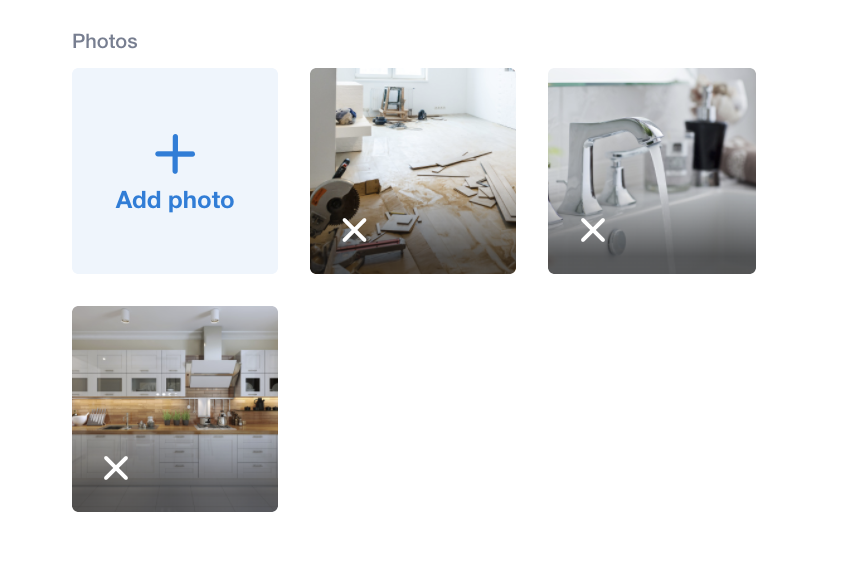
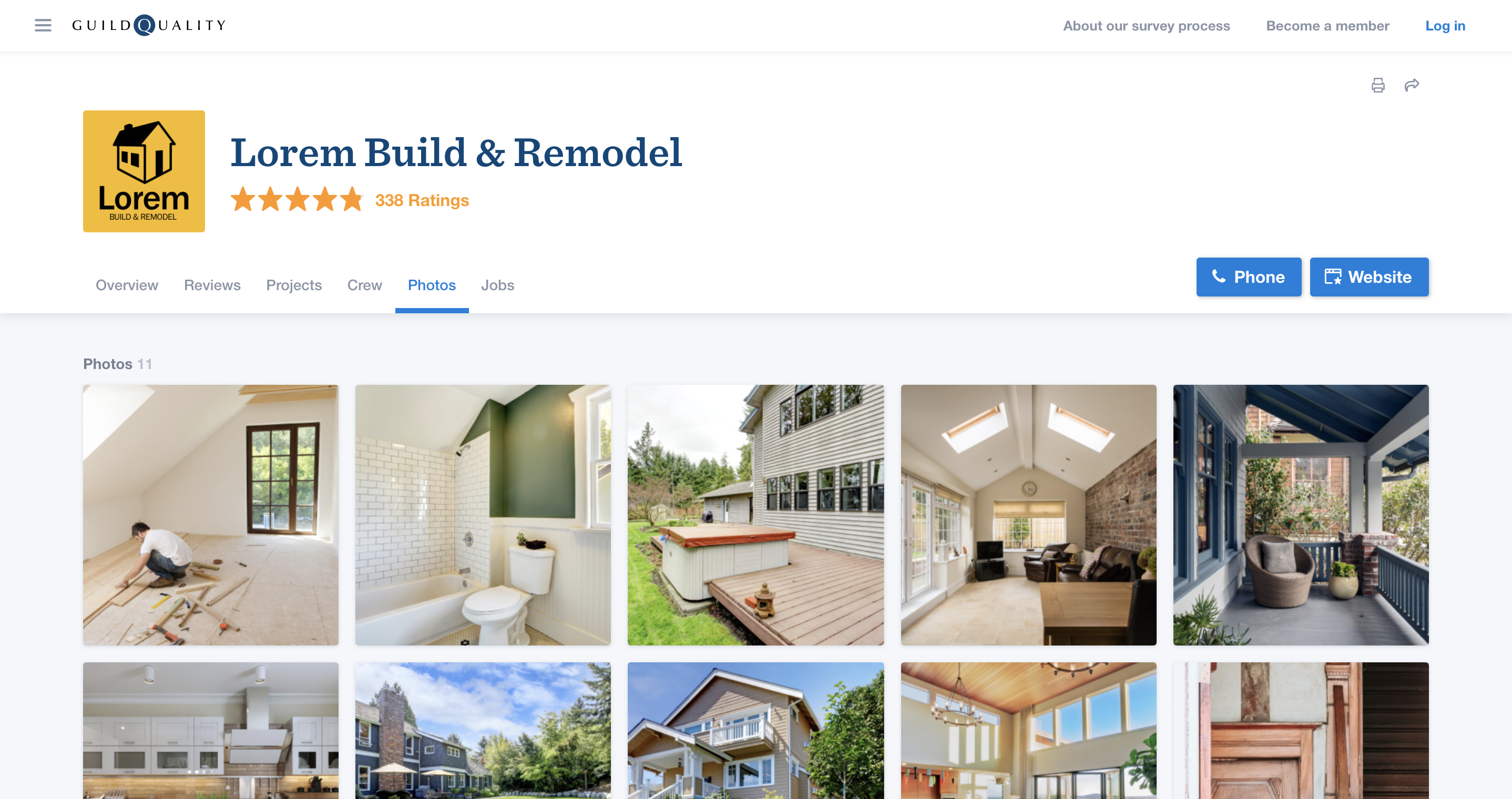
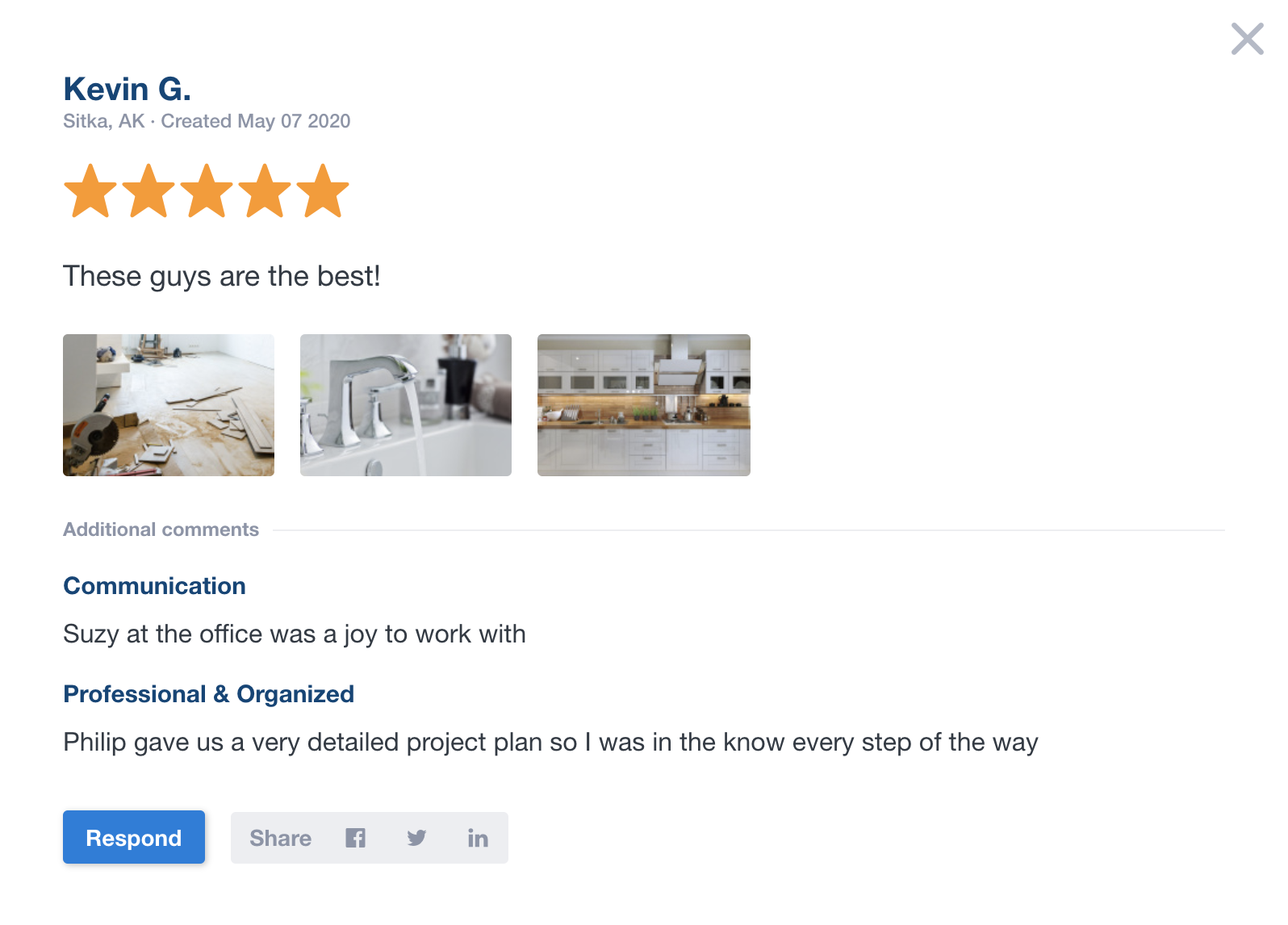
You can add photos to your projects to display on your public profile and show off your quality work. All photos added to your account will appear in the photos section of your profile. Additionally, photos added to a project with feedback will appear on your profile in the context of that response.
Examples
How to add photos
Adding photos is easy. Navigate to one of your contacts, scroll down to the bottom of the project, and click the blue add photos button. Be mindful of which projects you add photos to, as mentioned above; if a project has feedback, its photos will appear on its public feedback card in addition to the photos section of your profile.